Lab 11: Paper Prototyping & Think-Aloud Evaluation
Learning Objectives
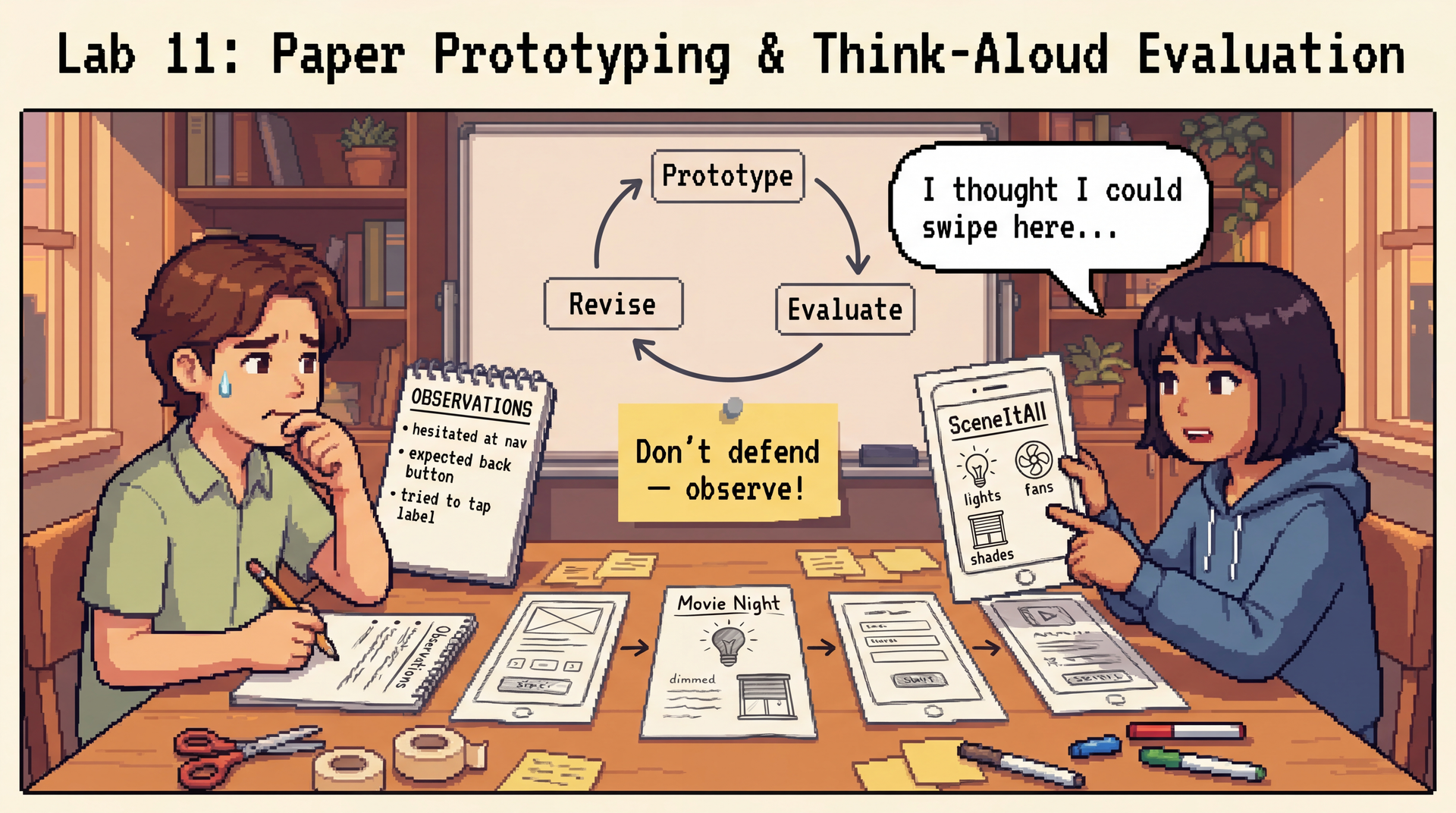
- Create a low-fidelity paper prototype for a software feature
- Conduct a think-aloud evaluation with a partner
- Revise a design based on observed usability issues
- Practice the prototype → evaluate → revise cycle from L27
Overview
In Lab 10, you evaluated someone else's finished product. This week you build something and watch someone else try to use it. You'll create a paper prototype of a feature for SceneItAll (the IoT/smarthome app from Lectures 2 and 13), then run a think-aloud evaluation with a classmate.
This is the same prototype → evaluate → revise cycle you'll use in the Design Sprint (CYB10) — but in a different domain, so you build the skills without burning your first impressions of CookYourBooks.
CYB10 asks you to design wireframes for CookYourBooks. We're practicing with a different domain on purpose — so when you sit down to create your CYB10 persona and wireframes, you'll have already run through the full cycle once, and you'll know what "watching someone struggle with your design" actually feels like.
SceneItAll: Quick Refresher
SceneItAll is an IoT/smarthome control app that manages:
| Concept | What it does |
|---|---|
| Lights | Switched (on/off), dimmable, or RGBW tunable |
| Fans | On/off, speeds 1–4 |
| Shades | Open/closed, adjustable 0–100% |
| Areas | Group devices by room/zone; can be nested (e.g., "Upstairs" contains "Bedroom" and "Office") |
| Scenes | Preset conditions across devices — e.g., "Movie Night" dims lights, closes shades, turns off fans. Can be applied to an Area and cascade to nested areas. |
Part 1: Setup (5 min)
Have students form pairs. Ideally, pair students who are NOT on the same CYB team — fresh eyes help them practice giving unbiased feedback.
Form pairs. Each person picks a different design task from the list below:
| Design Task | What you're designing |
|---|---|
| Scene Builder | The interface for creating and editing a Scene. Users select devices, set target states, name the scene, and optionally assign it to an area. |
| Area Dashboard | The main view for an Area. Users see all devices at a glance, control them individually, and apply scenes. Consider nested areas (e.g., "Upstairs" contains "Bedroom" and "Office"). |
| Device Setup & Control | The flow for adding a new device and then controlling it. The user discovers a new light on the network, names it, assigns it to an area, and adjusts its settings. |
| Schedule & Automation | The interface for setting up automated rules. For example: "At sunset, activate 'Evening' scene in Living Room" or "When I leave home, turn off all lights." |
Before you start sketching, think about your user. A SceneItAll user might be a tech-savvy homeowner setting up dozens of devices, or a roommate who just wants to turn on the lights. Who are you designing for?
Part 2: Prototype (20 min)
Sketch a paper prototype of your chosen feature — 3–5 screens on paper, whiteboard, or sticky notes.
Your prototype must include:
- The main view — what does the user see first?
- At least 2 interactions — what happens when the user taps/clicks/adjusts something? Show the screen transitions.
- One error or edge case — what happens when something goes wrong? (Device offline? Scene name already taken? No devices in an area?)
This is intentionally low-fidelity. Sticky notes, index cards, hand-drawn boxes. Speed matters more than polish — the point is to make your assumptions visible so someone can challenge them.
Part 3: Think-Aloud Evaluation (20 min)
Before students start, briefly demo the facilitator role: give a task, ask the user to think aloud, simulate the system by swapping paper screens, and take notes without explaining or defending the design. Emphasize: watch and write, don't explain.
Round 1 (10 min): You facilitate, your partner is the user.
-
Give your partner a task. Make it concrete and realistic:
- Scene Builder: "Create a scene called 'Movie Night' that dims the living room lights to 20%, closes the shades, and turns off the fan."
- Area Dashboard: "You just got home. Turn on the lights in the kitchen and check if anything is running upstairs."
- Device Setup: "A new smart light appeared on your network. Add it to the bedroom and set it to warm white at 50%."
- Schedule: "Set up an automation that turns off all lights at midnight every night."
-
Ask them to think aloud as they work through your paper screens. ("Tell me what you're looking at, what you're trying to do, what you expect to happen.")
-
You simulate the system — swap screens, point to responses, draw new elements if needed. You are the computer.
-
Take notes. Focus on:
- Where did they hesitate?
- What did they expect that wasn't there?
- Where did they try to interact with something that wasn't interactive?
- What did they misunderstand?
Do not explain or defend your design. The urge will be strong. Resist it. If they're confused, that's data. Write it down.
Round 2 (10 min): Swap roles.
Part 4: Revise & Reflect (15 min)
Based on what you observed:
-
Revise one screen to address the most important issue the evaluation surfaced. Sketch the revised version next to (or on top of) the original so the change is visible.
-
Complete your
REFLECTION.mdin your lab repository:
Section 1: Your Design
- Your name
- Which design task you chose (Scene Builder / Area Dashboard / Device Setup / Schedule)
- Who is your target user? (Brief persona — 2–3 sentences)
Section 2: Think-Aloud Findings
- What task did you give your evaluator?
- What was the most significant usability issue they found?
- What did the user expect that your prototype didn't provide?
- Were there any moments where they tried to interact with something that wasn't there?
Section 3: Revision
- What did you change in your revised screen, and why?
- Which of Nielsen's heuristics (from Lab 10) does your revision address?
Section 4: Looking Ahead to CYB10
- What will you do differently when you create wireframes for the Design Sprint?
- What did you learn from being the evaluator (watching someone else's design) that will help you as a designer?
Submission
Submit through your Pawtograder lab repository:
- Photos of your original prototype (3–5 screens)
- Photo of your revised screen
- Completed
REFLECTION.md
Grading
Option 1: Complete all sections of REFLECTION.md with photos of your prototype and revision → full credit.
Option 2: Submit whatever you complete along with the reflection questions documenting your progress, what you found challenging, and what you learned → good-faith credit available. Attendance and genuine engagement matter more than perfection.
Resources
- L27: User-Centered Design — the prototype → evaluate → revise cycle
- Lab 10: Usability Heuristic Evaluation — Nielsen's 10 Heuristics reference
- Nielsen Norman Group: Paper Prototyping
- Nielsen Norman Group: Thinking Aloud