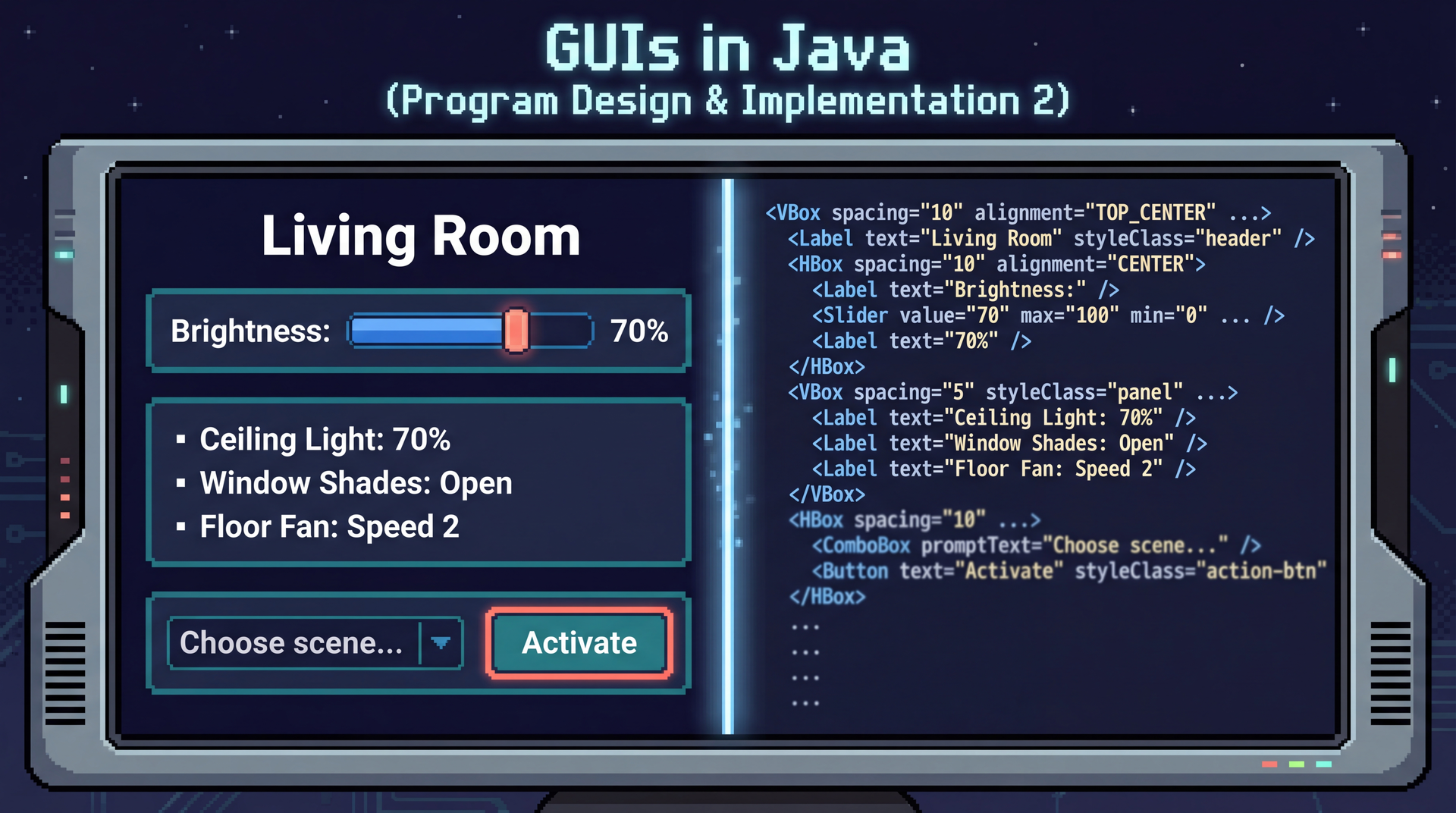
CS 3100: Program Design and Implementation II
Lecture 29: GUIs in Java
©2026 Jonathan Bell, CC-BY-SA
Learning Objectives
After this lecture, you will be able to:
- Explain the difference between sequential and event-driven programming
- Apply the Model-View-Controller pattern to separate UI from business logic
- Build a simple JavaFX interface using FXML, controllers, and standard components
- Use JavaFX properties and binding to keep the View synchronized with the Model
- Apply accessibility practices (accessible text, keyboard navigation, focus management) in JavaFX
Your Code Has Been Telling Users What to Do — Now They Tell You
Sequential (CLI) — you're in control
System.out.println("Enter room name:");
String room = scanner.nextLine(); // blocks here
System.out.println("Enter brightness (0-100):");
int brightness = scanner.nextInt(); // blocks here
light.setBrightness(brightness);
System.out.println("Set to " + brightness + "%");
Your code decides the order. The user waits for you.
Event-driven (GUI) — the user is in control
brightnessSlider.setOnMouseReleased(e -> {
    // runs when user releases the slider
});
sceneButton.setOnAction(e -> {
    // runs when user clicks "Activate Scene"
});
// code continues immediately
// doesn't wait for any interaction
The user decides the order. Your code waits for them.
This is called inversion of control. You don't call the framework — the framework calls you.
The Event Loop: Your Code Is a Guest in Someone Else's House
Every GUI framework has an event loop at its core:
// Pseudocode - what the framework does
while (applicationIsRunning) {
    Event event = waitForNextEvent();     // block until click, keypress, timer...
    EventHandler handler = findHandler(event); // look up your registered callback
    handler.handle(event);                // call YOUR code
}
What this means for you:
- Your code runs inside the framework's loop — you are a guest
- If your handler takes too long, the entire UI freezes (no events can be processed)
- In JavaFX, this loop runs on the JavaFX Application Thread — all UI updates must happen here
Java's Three GUI Toolkits Tell the Story of UI Evolution
| AWT (1995) | Swing (1997) | JavaFX (2008/2014) | |
|---|---|---|---|
| Approach | Wraps native OS widgets | Draws its own widgets in Java | Scene graph + CSS + FXML |
| Consistency | Looks different on each OS | Identical everywhere | Styleable, consistent |
| Code | Button b = new Button("Go"); | JButton b = new JButton("Go"); | Button b = new Button("Go"); |
| Strength | Native look and feel | Cross-platform consistency | Modern architecture |
| Weakness | Lowest common denominator | Looks dated, no CSS/FXML | Unbundled from JDK since Java 11 |
We'll use JavaFX because its architecture — scene graphs, declarative UI, CSS styling, property binding — reflects patterns used in modern frameworks (React, SwiftUI, Flutter).
The JavaFX API: Stage, Scene, and Scene Graph
Before we organize our code, let's understand what the GUI toolkit gives us:
- Stage = the application window (title bar, minimize/maximize/close)
- Scene = the content inside the window
- Scene Graph = a tree of nodes — every widget, every layout container, every label is a node in this tree
- Rendering = the framework walks the tree and draws each node. You build the tree; the framework draws it.
Your First JavaFX Application
Note: Code examples in these slides omit import statements and some boilerplate for clarity. See the lecture notes for complete, runnable versions.
public class SceneItAllApp extends Application {

    @Override
    public void start(Stage stage) {
        // Build the scene graph — a tree of nodes
        Label title = new Label("Living Room");
        title.setStyle("-fx-font-size: 20px; -fx-font-weight: bold;");

        Slider brightness = new Slider(0, 100, 70);
        Button activate = new Button("Activate Scene");
        activate.setOnAction(e -> System.out.println("Scene activated!"));

        ListView<String> devices = new ListView<>();
        devices.getItems().addAll("Ceiling Light: 70%", "Shades: Open", "Fan: Speed 2");

        VBox root = new VBox(10, title, brightness, devices, activate);

        // Wrap the tree in a Scene, put the Scene in a Stage
        Scene scene = new Scene(root, 400, 300);
        stage.setTitle("SceneItAll");
        stage.setScene(scene);
        stage.show();
    }

    public static void main(String[] args) { launch(args); }
}
This works — but all the UI construction, event handling, and data are in one method. That won't scale.
FXML: Building the Same Tree Declaratively
Java (imperative)
Label title = new Label("Living Room");
title.setStyle("-fx-font-size: 20px;");

Slider brightness = new Slider(0, 100, 70);

ListView<String> devices = new ListView<>();

Button activate = new Button("Activate");
activate.setOnAction(e -> { ... });

VBox root = new VBox(10,
    title, brightness, devices, activate);
Build the tree with constructor calls. Mix structure with behavior.
FXML (declarative)
<VBox spacing="10">
    <Label text="Living Room"
           style="-fx-font-size: 20px;"/>

    <Slider min="0" max="100" value="70"/>

    <ListView fx:id="deviceList"/>

    <Button text="Activate"
            onAction="#handleActivate"/>
</VBox>
Declare what exists. Behavior lives elsewhere (Controller).
Same scene graph tree. Different way to define it. FXML separates structure (what exists) from behavior (what happens).
MVC Is Hexagonal Architecture for User Interfaces
In L16 we learned to separate domain logic from infrastructure so code is testable. MVC applies that principle to GUIs:
The Model is cleanly domain-side — no UI imports, fully testable. But the Controller does everything else: it reads from the Model, makes decisions, AND manually pushes updates to View widgets. It straddles the hexagonal boundary. We'll fix this in L30.
Model
Data + business logic. Knows nothing about the UI.
View
What the user sees. Widgets, layout, styling. No business logic.
Controller
Translates user actions into model updates. The thin middleman.
What Goes Wrong Without MVC
This is what code looks like when UI and business logic are tangled together:
// Everything in one place — the "Big Ball of Mud"
dimButton.setOnAction(event -> {
    int brightness = Integer.parseInt(brightnessField.getText());
    // Business logic mixed into the click handler
    if (brightness < 0 || brightness > 100) brightness = 50;
    for (int i = 0; i < deviceList.getItems().size(); i++) {
        String device = deviceList.getItems().get(i);
        if (device.contains("Light")) {
            deviceList.getItems().set(i, device.split(":")[0] + ": " + brightness + "%");
        }
    }
    // Network call in the UI handler
    zigbeeController.sendCommand(deviceId, "brightness", brightness);
    // Logging in the UI handler
    auditLog.record("Brightness set to " + brightness + " by " + currentUser);
});
How do you unit test the brightness validation logic? You can't — it's trapped inside a button click handler.
The Model: Business Logic with No UI Dependencies
// Model: Light.java — pure business logic, fully testable
public class Light extends SmartDevice {
    private int brightness;  // 0-100
    private boolean isOn;

    public void setBrightness(int level) {
        this.brightness = Math.clamp(level, 0, 100);
        this.isOn = (brightness > 0);
    }

    public void toggle() {
        this.isOn = !this.isOn;
    }

    public int getBrightness() { return brightness; }
    public boolean isOn() { return isOn; }
    public String getStatus() {
        return isOn ? getName() + ": " + brightness + "%" : getName() + ": Off";
    }
}
// You can test this right now — no GUI required
@Test
void brightnessClampedToValidRange() {
    Light light = new Light("Desk Lamp");
    light.setBrightness(150);
    assertEquals(100, light.getBrightness());
}

@Test
void settingBrightnessToZeroTurnsOff() {
    Light light = new Light("Desk Lamp");
    light.setBrightness(0);
    assertFalse(light.isOn());
}
The View: What the User Sees (FXML)
JavaFX separates UI structure into FXML — an XML file that declares what widgets exist and how they're arranged:
<!-- View: area-dashboard.fxml -->
<?xml version="1.0" encoding="UTF-8"?>
<?import javafx.scene.control.*?>
<?import javafx.scene.layout.*?>

<VBox spacing="10" xmlns:fx="http://javafx.com/fxml"
      fx:controller="sceneitall.AreaDashboardController">

    <Label fx:id="areaNameLabel" style="-fx-font-size: 18px;"/>

    <HBox spacing="5" alignment="CENTER_LEFT">
        <Label text="Brightness:"/>
        <Slider fx:id="brightnessSlider" min="0" max="100"/>
        <Label fx:id="brightnessValueLabel" text="50%"/>
    </HBox>

    <ListView fx:id="deviceList"/>

    <Button fx:id="sceneButton" text="Activate Scene"
            onAction="#handleActivateScene"/>
</VBox>
No business logic here. The View defines what appears — not what it means.
How FXML and Java Find Each Other: @FXML Wiring
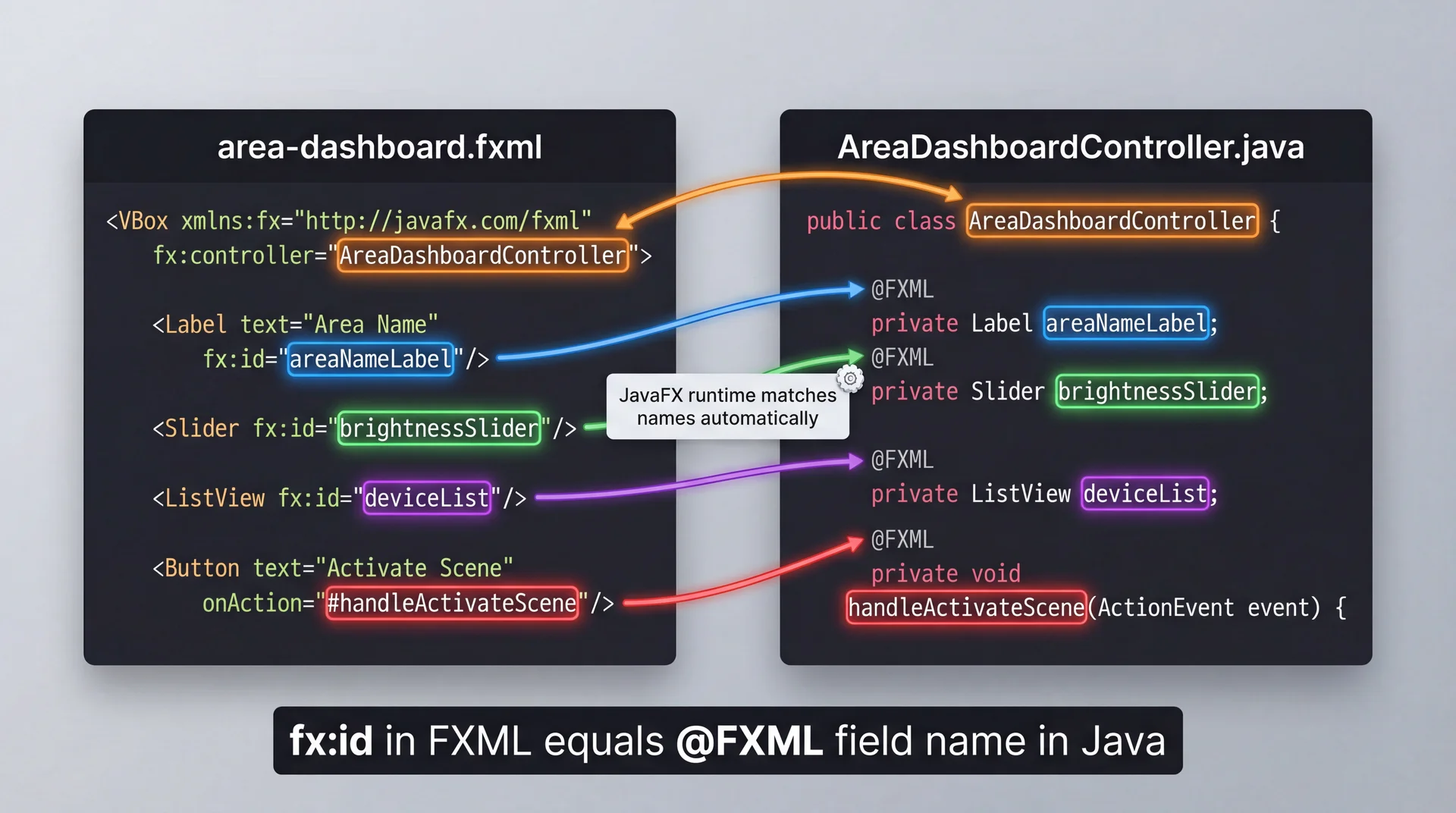
fx:controller tells JavaFX which class to create. fx:id matches @FXML fields by name. onAction="#method" matches @FXML methods by name. The framework does the wiring — you just make the names match.
The JavaFX Component Lifecycle: What Runs When
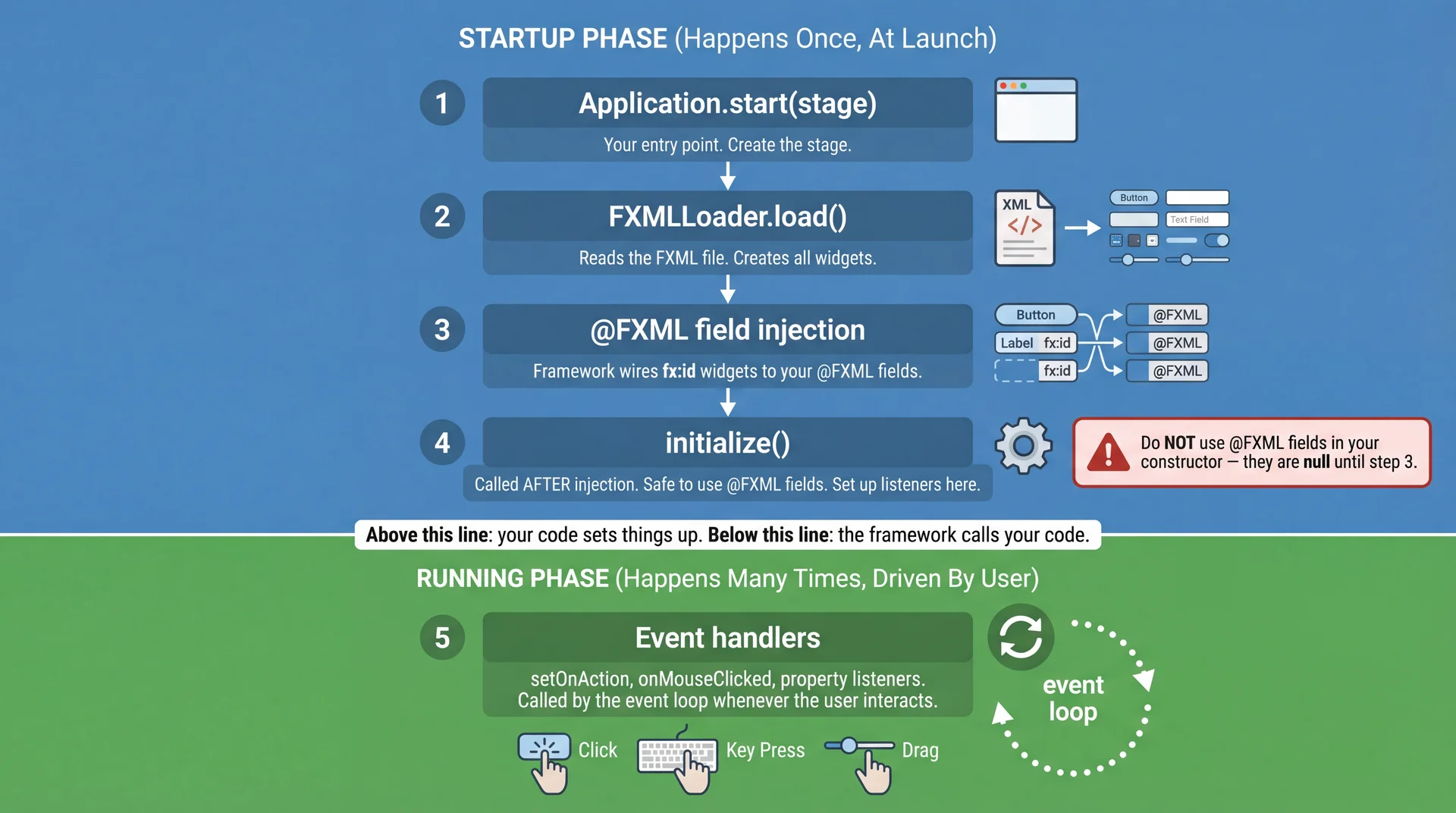
The Controller: The Translator Between User Actions and Business Logic
// Controller: AreaDashboardController.java
public class AreaDashboardController {

    @FXML private Label areaNameLabel;
    @FXML private Slider brightnessSlider;
    @FXML private Label brightnessValueLabel;
    @FXML private ListView<String> deviceList;

    private Area model;  // the Controller knows the Model

    public void setModel(Area model) {
        this.model = model;
        areaNameLabel.setText(model.getName());
        updateDeviceList();
    }

    @FXML
    private void initialize() {
        // Update label as slider moves
        brightnessSlider.valueProperty().addListener((obs, oldVal, newVal) -> {
            brightnessValueLabel.setText(newVal.intValue() + "%");
            model.setAllLightsBrightness(newVal.intValue()); // delegate to Model
            updateDeviceList();
        });
    }

    @FXML
    private void handleActivateScene() {
        model.activateScene("Evening");  // delegate to Model
        updateDeviceList();
    }

    private void updateDeviceList() {
        deviceList.getItems().setAll(
            model.getDevices().stream()
                .map(SmartDevice::getStatus).toList()
        );
    }
}
Following a Click Through All Three Layers
User clicks "Activate Scene" for the "Evening" scene. Trace the code:
// 1. VIEW (FXML) — button wired to Controller method
<Button text="Activate" onAction="#handleActivateScene"/>

// 2. CONTROLLER — receives the event, delegates to Model
@FXML private void handleActivateScene() {
    String scene = sceneSelector.getValue();    // read from View
    model.activateScene(scene);                 // delegate to Model
    updateDeviceList();                         // refresh the View
}

// 3. MODEL — pure business logic, no UI
public void activateScene(String name) {
    Scene scene = scenes.get(name);             // "Evening" → dim to 30%, close shades
    for (SmartDevice device : devices) {
        scene.applyTo(device);                  // sets brightness, shade position, fan state
    }
}

// 4. Back in CONTROLLER — View shows updated state
private void updateDeviceList() {
    deviceList.getItems().setAll(                // "Ceiling Light: 30%", "Shades: 80%", "Fan: Off"
        model.getDevices().stream().map(SmartDevice::getStatus).toList());
}
The Model never imports javafx. The View never calls activateScene(). Each layer does one job.
Comprehension Check
Open Poll Everywhere and answer the next 4 questions.
JavaFX Components Are the Standard Components from L28
Remember from L28: standard components get accessibility for free. These are the real buttons, not the fakes:
| Component | What it does | SceneItAll use case | Accessibility |
|---|---|---|---|
Button | Clickable action | "Activate Scene" | Screen reader: "Activate Scene, button" |
Label | Display-only text | "Living Room" | Screen reader reads the text |
Slider | Continuous value | Brightness control | Arrow keys adjust, announced as "Brightness, slider, 75%" |
ComboBox | Dropdown selection | Choose a scene | Arrow keys navigate options |
ListView | Scrollable list | Device list | Arrow keys navigate, Enter selects |
CheckBox | Toggle on/off | Device power | Space to toggle |
TextField | Text input | Rename a device | Screen reader: "Device name, text field" |
Spinner | Numeric up/down | Fan speed (1-4) | Arrow keys increment/decrement |
All of these support Tab navigation, Enter/Space activation, and screen reader announcements — automatically.
Layout Containers: How Components Arrange Themselves
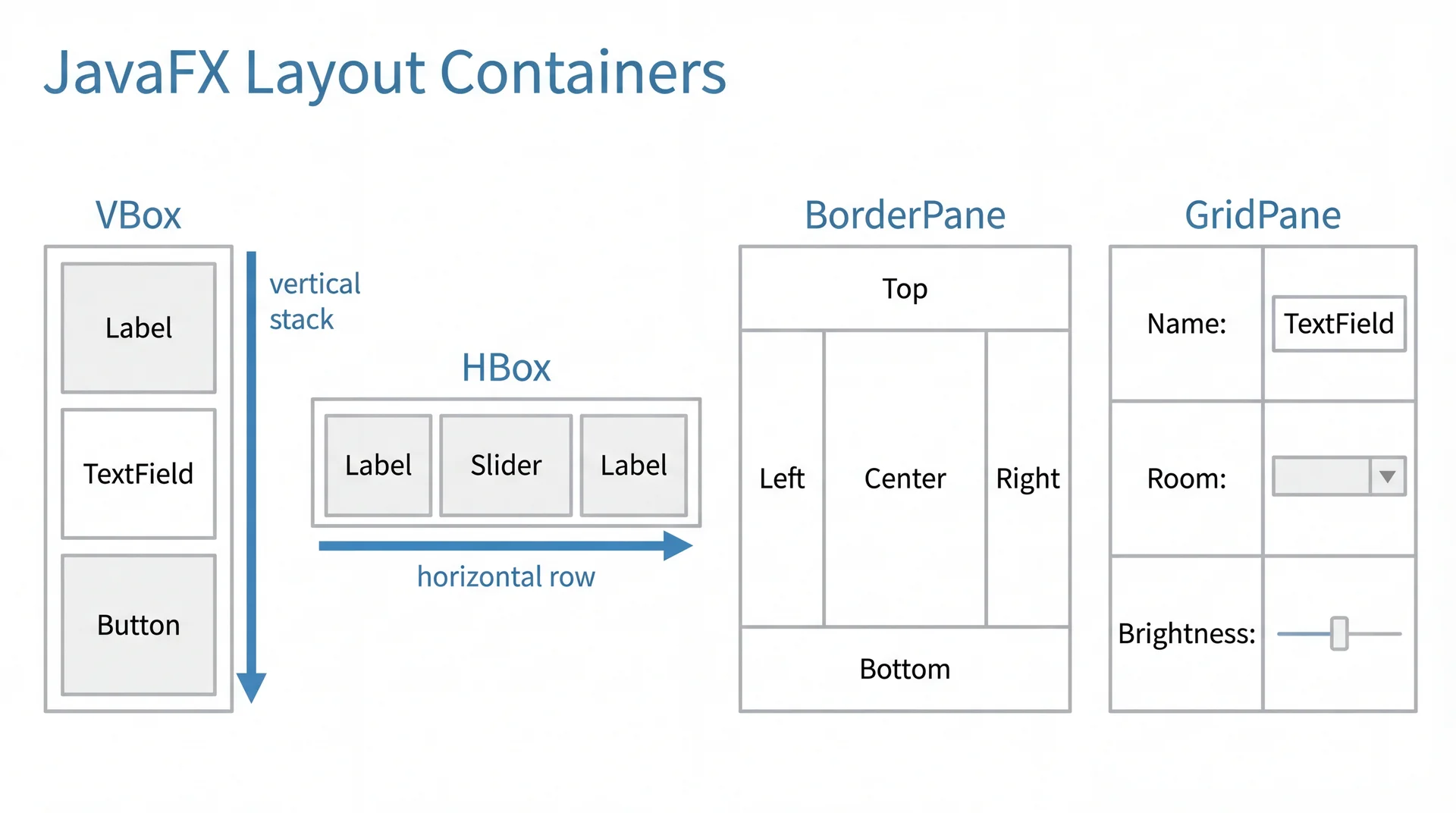
Building the Area Dashboard: Putting It All Together
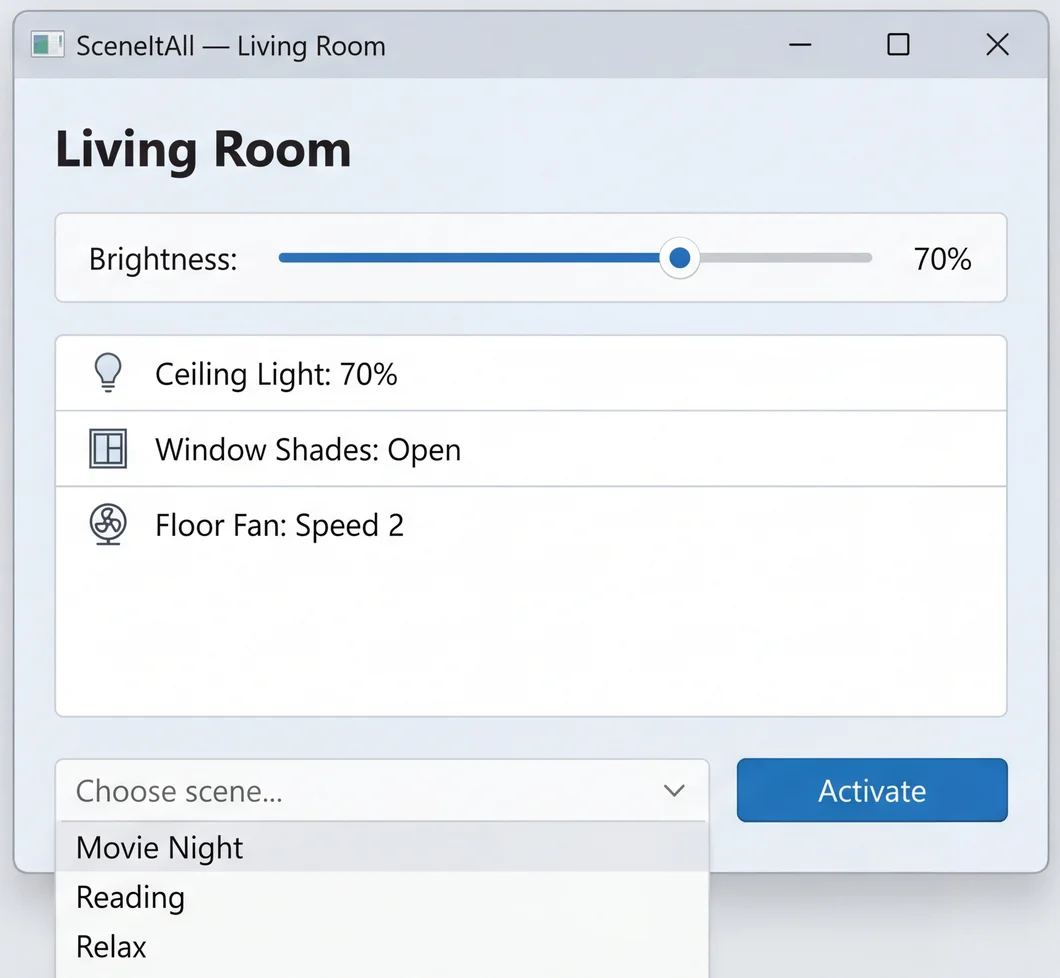
area-dashboard.fxml
<VBox spacing="10"
  fx:controller="sceneitall.AreaDashboardController">

  <Label fx:id="areaNameLabel"
         style="-fx-font-size: 20px;
                -fx-font-weight: bold;"/>

  <HBox spacing="5" alignment="CENTER_LEFT">
    <Label text="Brightness:"/>
    <Slider fx:id="brightnessSlider"
            min="0" max="100"/>
    <Label fx:id="brightnessValueLabel"/>
  </HBox>

  <ListView fx:id="deviceList"
            prefHeight="200"/>

  <HBox spacing="5">
    <ComboBox fx:id="sceneSelector"
              promptText="Choose scene..."/>
    <Button text="Activate"
            onAction="#handleActivateScene"/>
  </HBox>
</VBox>
AreaDashboardController.java
public class AreaDashboardController {
  @FXML private Label areaNameLabel;
  @FXML private Slider brightnessSlider;
  @FXML private Label brightnessValueLabel;
  @FXML private ListView<String> deviceList;
  @FXML private ComboBox<String> sceneSelector;
  private Area model;

  public void setModel(Area model) {
    this.model = model;
    areaNameLabel.setText(model.getName());
    sceneSelector.getItems().setAll(
      model.getSceneNames());
    updateDeviceList();
  }

  @FXML private void initialize() {
    brightnessSlider.valueProperty()
      .addListener((obs, old, val) -> {
        int level = val.intValue();
        brightnessValueLabel.setText(level + "%");
        model.setAllLightsBrightness(level);
        updateDeviceList();
    });
  }

  @FXML private void handleActivateScene() {
    String scene = sceneSelector.getValue();
    if (scene != null) {
      model.activateScene(scene);
      updateDeviceList();
    }
  }

  private void updateDeviceList() {
    deviceList.getItems().setAll(
      model.getDevices().stream()
        .map(SmartDevice::getStatus).toList());
  }
}
Properties and Binding: When the Model Changes, the View Updates Automatically
JavaFX properties are observable values. When they change, anything bound to them updates automatically:
// Model with JavaFX properties
public class Light extends SmartDevice {
    private final IntegerProperty brightness = new SimpleIntegerProperty();
    private final BooleanProperty on = new SimpleBooleanProperty();
    private final StringProperty status = new SimpleStringProperty();

    public IntegerProperty brightnessProperty() { return brightness; }
    public BooleanProperty onProperty() { return on; }
    public StringProperty statusProperty() { return status; }

    public void setBrightness(int level) {
        brightness.set(Math.clamp(level, 0, 100));
        on.set(brightness.get() > 0);
        status.set(on.get() ? getName() + ": " + brightness.get() + "%" : getName() + ": Off");
    }
}
// Controller: bind once, never manually refresh
brightnessSlider.valueProperty().bindBidirectional(light.brightnessProperty());
brightnessValueLabel.textProperty().bind(
    light.brightnessProperty().asString("%d%%")
);
// When light.setBrightness(30) is called anywhere, the slider and label update automatically.
Bind once. Never call updateUI() again. The View and Model stay in sync automatically.
CSS Styling: Your App Doesn't Have to Look Like 1997
JavaFX supports CSS — the same language used to style websites:
Before (default styling)
Gray widgets, system font, no visual hierarchy. Functional but uninviting.
After (with CSS)
Dark theme for a smart home dashboard, accent colors for active devices, hover effects. Same widgets, different experience.
/* styles.css */
.root {
    -fx-font-family: "Inter", sans-serif;
    -fx-base: #1a1a2e;           /* dark background */
    -fx-accent: #e94560;          /* accent color */
}
.button {
    -fx-background-color: #0f3460;
    -fx-text-fill: white;
    -fx-padding: 8px 16px;
    -fx-cursor: hand;
}
.button:hover { -fx-background-color: #16213e; }
.slider .track { -fx-background-color: #333; }
.slider .thumb { -fx-background-color: #e94560; }
<!-- Link the stylesheet in FXML -->
<VBox stylesheets="@styles.css">
Every Widget Needs a Name: Accessible Text in JavaFX
From L28: if a screen reader can't announce it, it doesn't exist. In JavaFX:
<!-- Accessible: screen reader says "Living room brightness, slider, 75 percent" -->
<Slider fx:id="brightnessSlider" min="0" max="100"
        accessibleText="Living room brightness"
        accessibleHelp="Use arrow keys to adjust brightness from 0 to 100 percent"/>

<!-- Accessible: screen reader says "Activate scene, button" -->
<Button text="Activate Scene" onAction="#handleActivateScene"/>

<!-- NOT accessible: screen reader says "button" (no label!) -->
<Button onAction="#handleToggleLight">
    <graphic><ImageView image="@lightbulb-icon.png"/></graphic>
</Button>

<!-- Fixed: icon button WITH accessible text -->
<Button onAction="#handleToggleLight"
        accessibleText="Toggle desk lamp on or off">
    <graphic><ImageView image="@lightbulb-icon.png"/></graphic>
</Button>
Keyboard Navigation and Focus Management
Focus is which widget is currently "selected" for keyboard input — the one that will respond when you press Enter, type text, or press arrow keys. Only one widget has focus at a time.
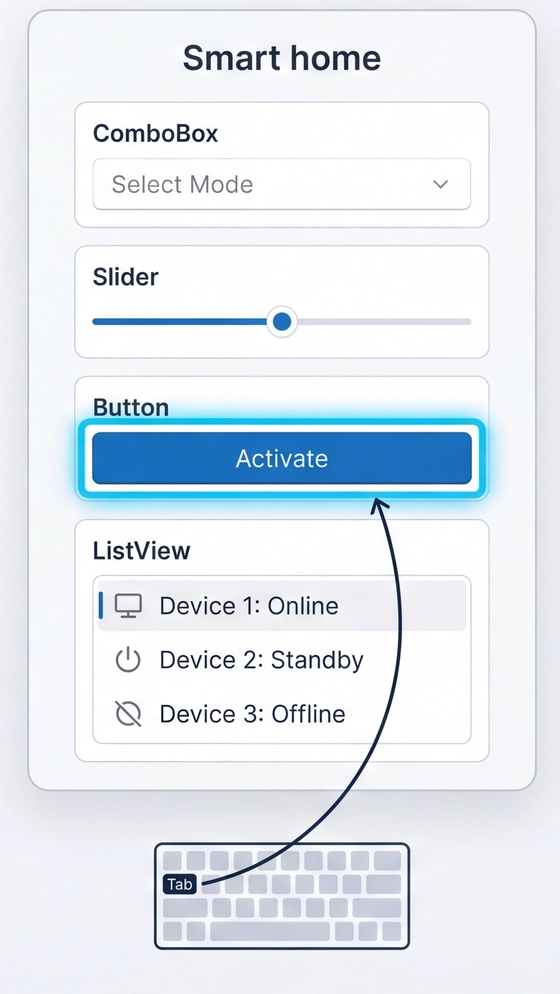
- Standard components get keyboard navigation for free. Tab moves focus between widgets in FXML document order. Enter activates buttons. Arrow keys adjust sliders. No extra code.
- Tab order = FXML document order. Arrange your FXML so Tab visits elements in a logical sequence.
- Focus must be visible. The focused widget shows a highlight ring so keyboard users know where they are. Never remove this with CSS.
- Dialogs trap focus. Use JavaFX's built-in
DialogandAlert— they handle focus trapping and return automatically.
The Problem MVC Doesn't Solve: Testability of the View
We can unit test the Model — it's pure Java. But the Controller has a problem:
// Can we unit test this?
public class AreaDashboardController {
    @FXML private Label areaNameLabel;     // needs JavaFX runtime
    @FXML private Slider brightnessSlider; // needs JavaFX runtime
    @FXML private ListView<String> list;   // needs JavaFX runtime

    // To test handleActivateScene(), we'd need to:
    // 1. Start the JavaFX runtime
    // 2. Load the FXML
    // 3. Create all the widgets
    // 4. Simulate a button click
    // That's an integration test, not a unit test.
}
The Controller is tangled with JavaFX widgets. We can't test the logic without the framework.
Could JavaFX solve this by providing a testing library that mocks all your FXML components? Sure — but that's a lot of software just to help you test software. There's a simpler answer.
Next lecture (L30): The Model-View-ViewModel (MVVM) pattern solves this by extracting testable logic into a ViewModel that has no UI dependencies. No mock framework needed.
Your GA1 Architecture at a Glance
- Each team member owns one feature (View + Controller + ViewModel)
- All features share the same Model layer (your domain classes from HW1-HW5)
- ViewModel interfaces are provided — they define the contract between features
- Today we used SceneItAll; in GA1 you'll apply the same patterns to CookYourBooks
Key Takeaways
- GUI programming inverts control. The framework runs the event loop; your code responds to events via callbacks.
- MVC separates concerns. Model = business logic (testable). View = presentation (FXML). Controller = translation (thin).
- Use standard components. Button, Slider, ComboBox, ListView — they get accessibility, keyboard navigation, and screen reader support for free.
- FXML separates structure from behavior. Layout in XML, logic in Java, styling in CSS — three files, three concerns.
- Properties and binding keep the View in sync. Bind once, never manually refresh. The Model and View stay connected automatically.
- Accessibility is not extra work — it's using the right components. Standard components + accessible text + focus management covers the baseline.
Looking Ahead
Lab 12 (next Monday): Hands-on GUI practice
- Build SceneItAll GUI components yourself — using the examples from this lecture and L30
- Bring your laptop with Scene Builder installed
Next up: GUI Patterns and Testing (L30)
- Model-View-ViewModel (MVVM) — the testable evolution of MVC
- Data binding deep dive — observable lists, computed properties
- TestFX — automated end-to-end GUI testing
Your group project:
- GA0 (due Mar 26): Design Sprint — wireframes, personas, accessibility plan
- GA1 (due Apr 9): Core Features — each person owns one feature (Library, Editor, Import, or Search)
- Start exploring Scene Builder and the OpenJFX documentation
Today you learned the architecture. Next, you learn to test it. Then you build it for real.